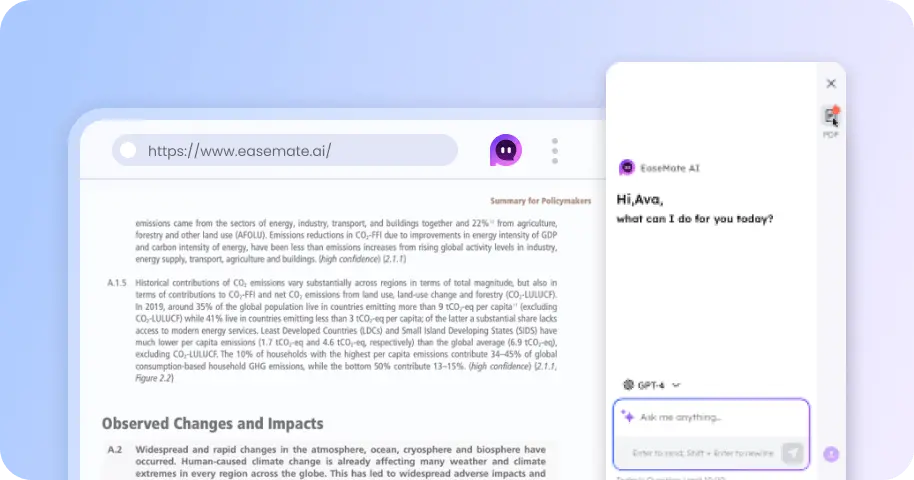
Photo to Oil Painting Converter: Turn Any Photo into Oil Painting for Free
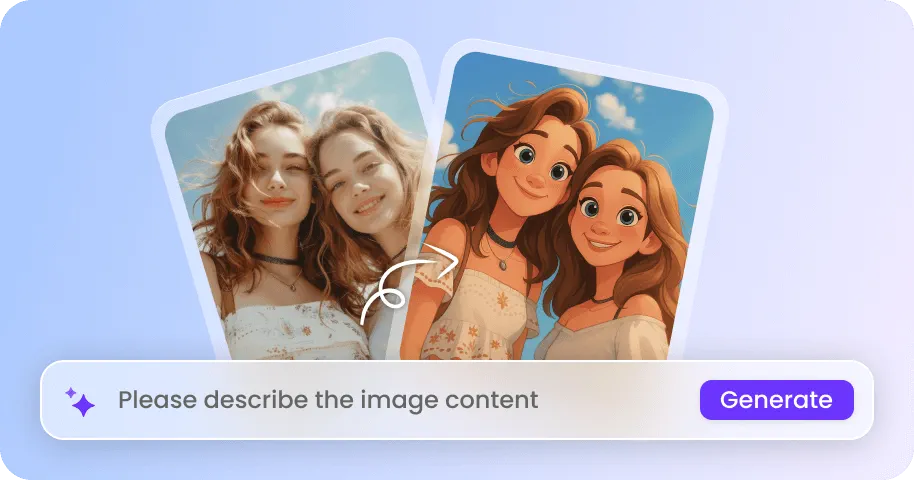
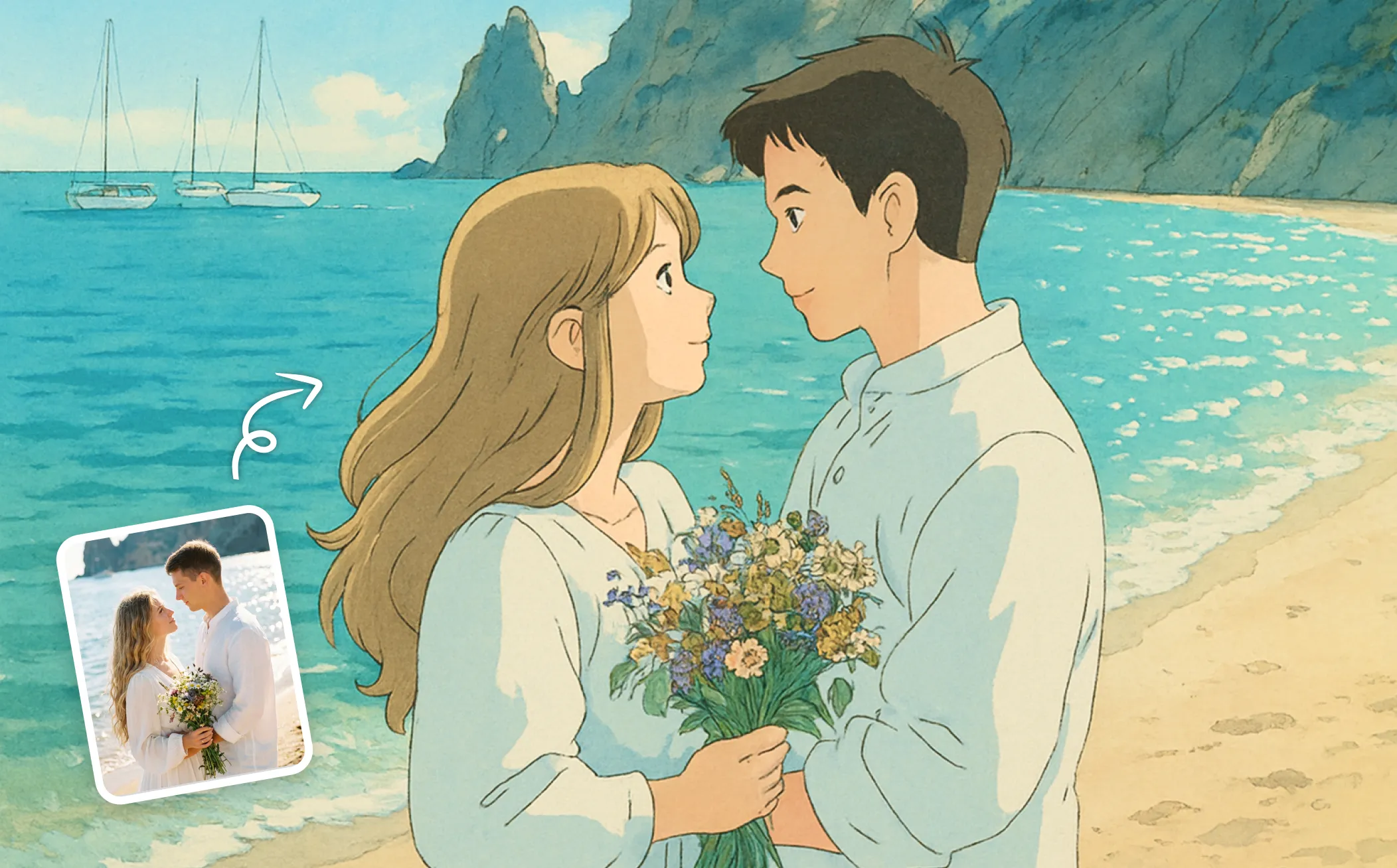
Free, fast, and fun, this oil painting generator makes it easy to transform any photo to oil painting with one click. Just upload your photo online and then watch as it becomes a stunning oil painting instantly.
 GPT-4o
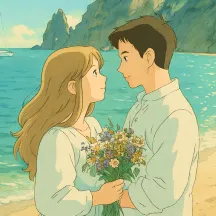
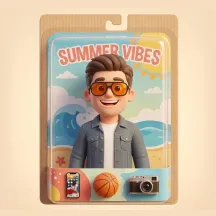
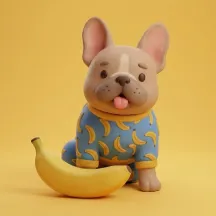
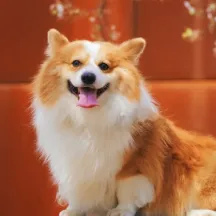
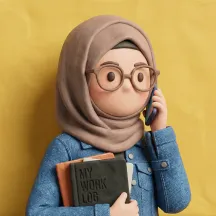
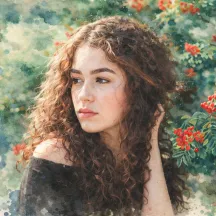
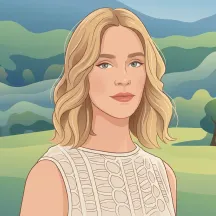
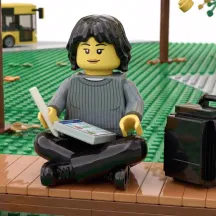
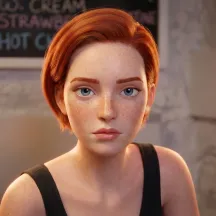
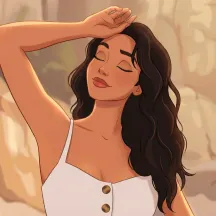
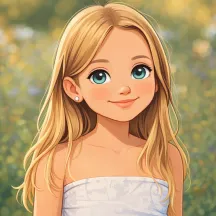
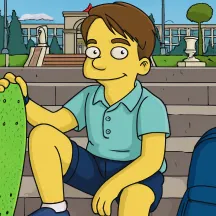
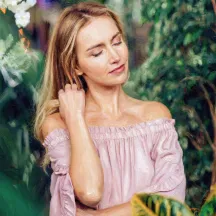
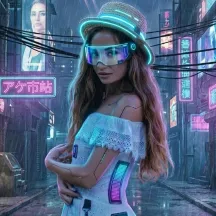
How to Apply Oil Painting Filter to Photos in EaseMate AI?
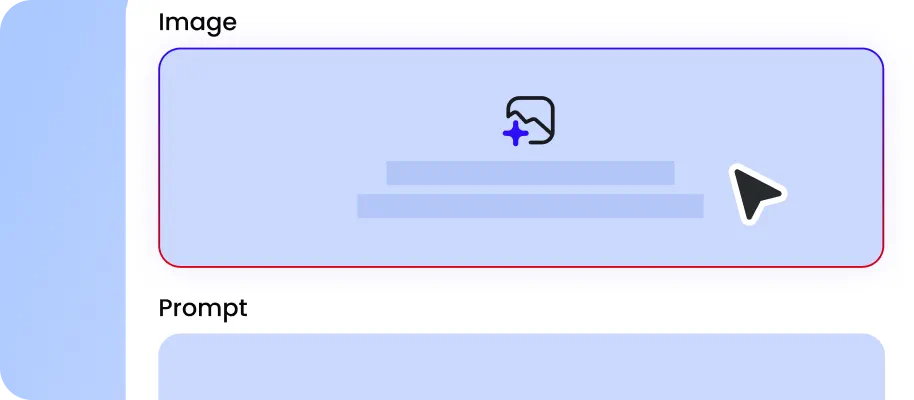
Pick a clear and high-quality photo and click "Choose a file" to upload it from your device. Also, you can directly drag and drop it to the designated area.
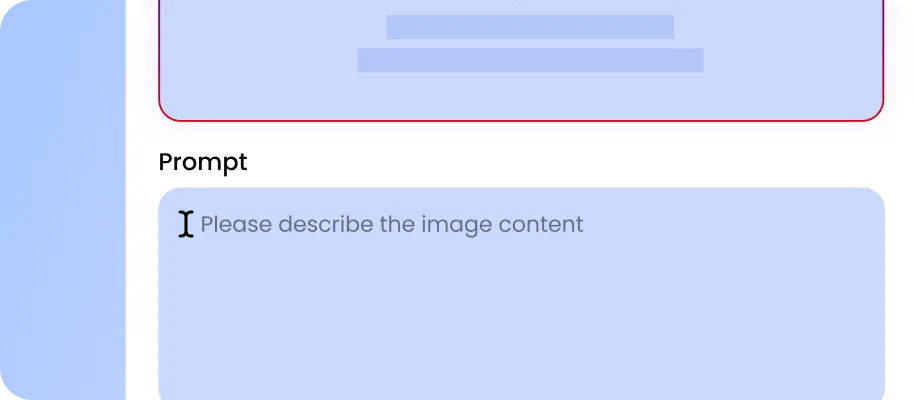
Click "Generate" to let EaseMate AI apply the oil painting filter in a few moments.

After previewing your artwork, you can download your watermark-free oil painting for further usage or share it on social media to snag more likes.
Why Choose Photo to Oil Painting in EaseMate AI
Create beautiful oil paintings from any uploaded images for free. No brushes, parlettes, or skills needed, just upload, click, and then you can get a unique oil paintings of yourself, friends, pets, and more. It‘s perfect for social media, home decor, and stylistic exploration.
Convert Photo to Oil Painting Free Online
Discover the ease of creating oil paintings from your photos with this oil painting filter in EaseMate AI. Without any traditional painting tools like brushes or palettes, you can add subtle gradations, complex textures, and high pigment concentrations to your images. Just upload your pictures and then let our online AI oil painting filter do the rest.
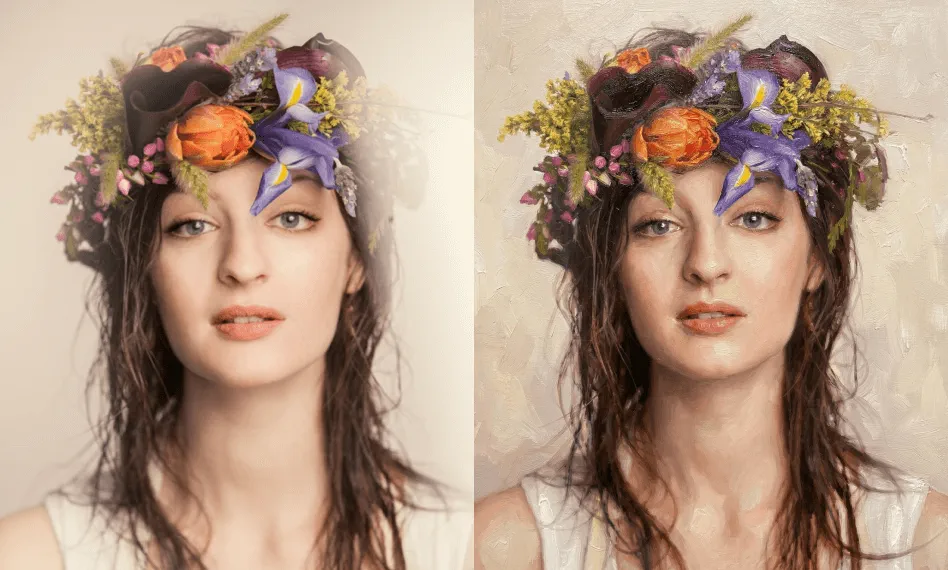
Enjoy the Perfect Blend of AI and Oil Painting
This AI oil painting generator blends the charm of classic oil painting with the convenience of digital technology. Aided by GPT-4o, Midjourney, Seedream 5.0, Nano Banana, and more, this online oil painting generator will analyze the uploaded picture instantly to capture all the essential features and then apply an oil painting filter to it.
Impress Everyone with the Beauty of Oil Paintings
With EaseMate AI Photo to Oil Painting Converter, you can free your photos from the ordinary. Everyone can convert their photos into stunning oil painting artworks that are perfect for home decor, social media posts, personal gifts, and more. These oil paintings help you impress your friends and fans with unmatched aesthetics on Instagram, Pinterest, YouTube, and TikTok.
Generate Unique Digital Oil Painting from Text and Image, No Skills Required
Design stunning oil-style artwork without any design experience. Upload any image or type a custom prompt, and then advanced AI models like GPT-4o, Nano Banana, Midjourney, and more will produce a detailed oil painting effect with authentic canvas textures. Forget about Photoshop or manual editing. Instantly generate high-resolution artworks perfect for posters, social media, or creative branding.
FAQs of Photo to Oil Paintings by EaseMate AI
How many pictures can I convert each day?
By default, EaseMate AI Photo to Oil Painting Converter allows you to turn one photo into an oil painting without logging in. If you're not logged in, you can transform one photo each day. After logging in and checking in, you can apply the oil painting effect to more images.
Can I turn photos into oil paintings for free?
What type of photos can this free oil painting image generator for free?
Is my data safe while using this oil painting generator?
Will the generated oil paintings contain a watermark?
EaseMate AI ToolKit
Find any tool you want here to make efficiency at your fingertips