


 EaseMate AI
EaseMate for your agents
EaseMate AI MCP.
Power Up Your Agent.
Bring EaseMate’s image and video models into the agent you already use. One account. Every creative model.
Loading your connection instructions…
- 1
Ask your agent
Paste the setup prompt.
- 2
Sign in on the web
Use your EaseMate account.
- 3
Allow account access
Review the client and permissions.
- 4
Return and create
Review credits before you start.
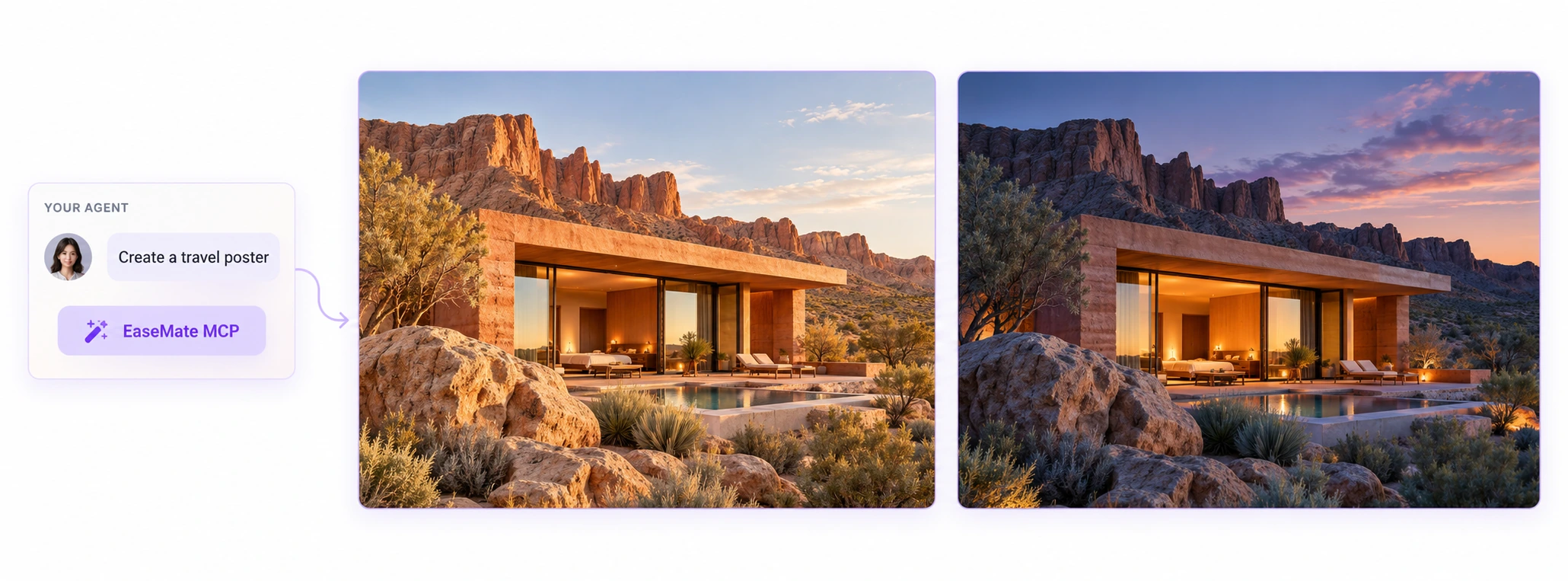
Create a poster for my travel brand. Warm tones, a desert cabin, and a surreal touch.
prompt → model → task → creative asset

Built for your workflowClient compatibility varies
Built for your workspace
Connect Your AI Agent to EaseMate MCP in Minutes
Start in your agent. Authorize on EaseMate. Then return to your conversation and create.
Start in Codex
Client compatibility variesAsk Codex to connect EaseMate
Copy this prompt into your agent to start the connection and web authorization flow.
Follow the web authorization
Your client opens EaseMate. Sign in, check the requesting client, callback host and permissions, then allow or deny access. Signing in alone does not grant access.
Return to your agent and create
Ask your agent to verify the connection, then describe what you want to make. Review the models, settings and total expected credits, and confirm the creative plan in your conversation before it is submitted.
Use EaseMate to create a travel brand poster with warm tones, a desert cabin, and a surreal style. Show me the model, settings, and expected credit usage first. Wait for my confirmation before submitting.
Connection and paid confirmation depend on your client's MCP capabilities. Availability must be verified in the client; copying this prompt does not confirm a connection.
One connection, more possibilities
One Connection for Powerful Image and Video Creation
Five creative capabilities. One connection. Your agent orchestrates. EaseMate creates.
01 / IMAGE
Give your ideas a visual form.
Create images from words or build on a reference. Make visuals for your website, brand, and next piece of content.
- Text to image
- Image to image
- Image models
02 / VIDEO
Set your story in motion.
Turn text or images into video, or edit an existing clip. Track each task from the first prompt to the final result.
- Text to video
- Image to video
- Video editing
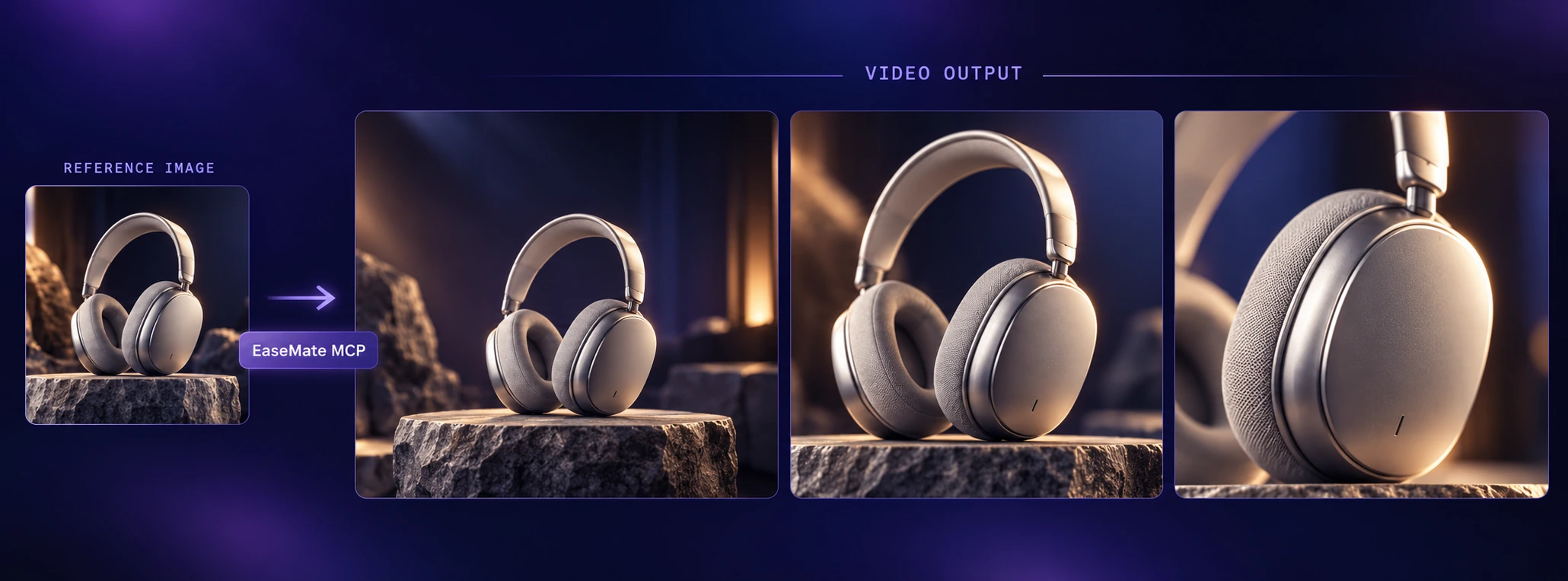
Every model. One connection.Explore available models through your agent. Parameters, input limits, pricing and availability follow the live EaseMate model catalog.
Explore capabilitiesSame account. Same credits.
A New Workflow. The Same Account and Credits.
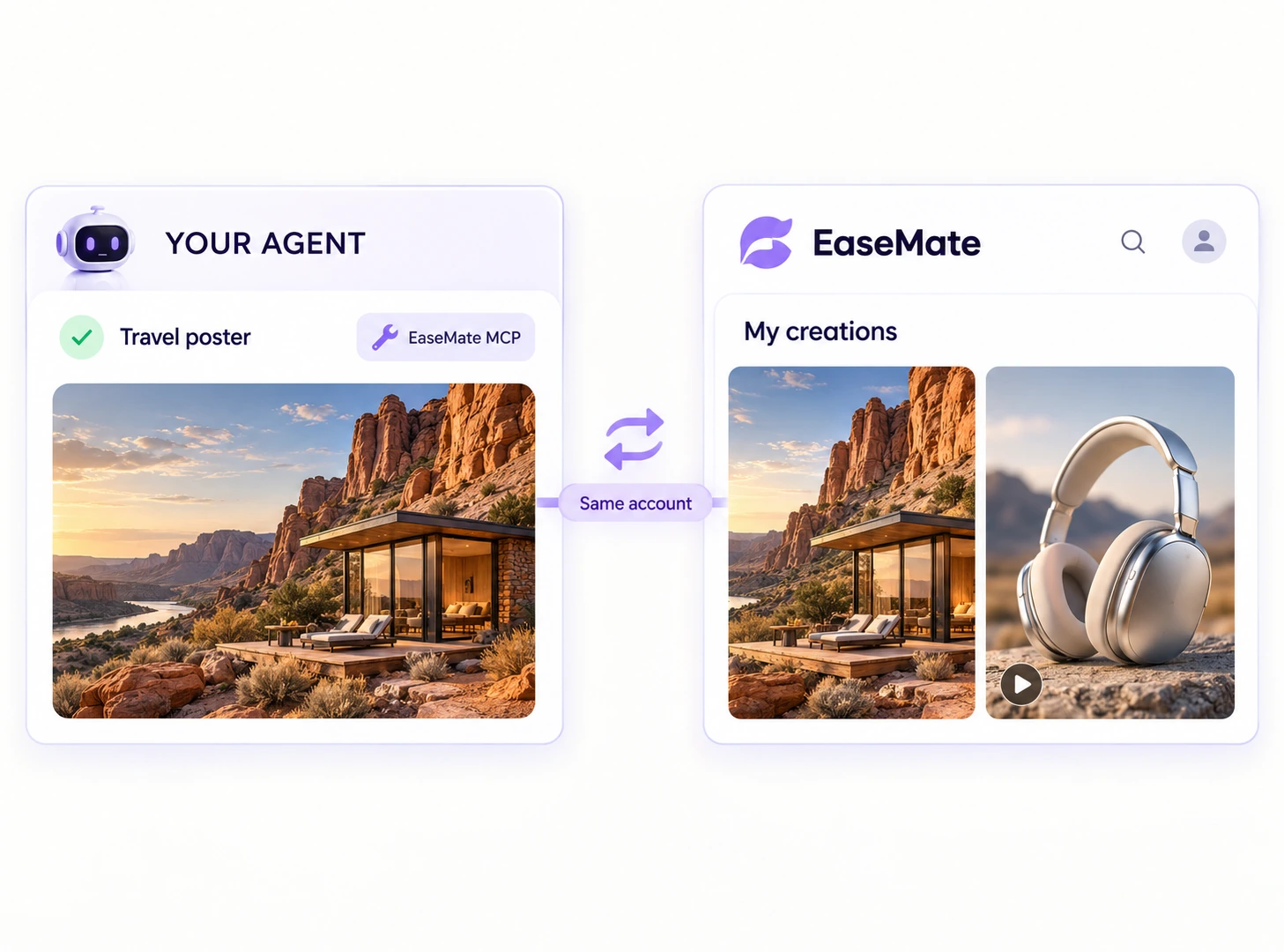
Keep your existing EaseMate account and credit rules. Review the expected credits and confirm each creative plan in your agent. Generated images and videos are also saved to your EaseMate Library.
- No separate MCP plan required.
- Same model, settings, and account benefits. Same pricing.
- Review and confirm the full creative plan before spending.
FAQs about EaseMate AI MCP
Less switching. More creating.
Do I need a separate MCP plan?
No separate MCP plan is required. Generation and editing use your existing EaseMate credits and account benefits under the website’s billing rules. If your balance is below the creative plan’s total, nothing is submitted. Spending elsewhere during submission can cause later tasks to fail while accepted tasks continue. Failed tasks are not automatically retried; review them, recalculate the expected credits and confirm before trying again. View current plans and credit options on the pricing page.
Can I connect by asking my agent?
Copy the connection prompt above into your agent. It includes the server address for this deployment. Follow your client’s supported MCP setup and web authorization flow, then ask it to verify the available tools. If authorization fails or the request expires, restart the connection from your client and sign in to the intended EaseMate account. Expired or already used authorization requests cannot be reused. Setup steps and OAuth support depend on your client.
Does authorization allow automatic spending?
No. Account authorization is separate from spending confirmation. Your agent must show the tasks, models, settings, itemized credits and total, then wait for your explicit agreement in the conversation. One confirmation can cover the complete creative plan, including defined later steps. Changes outside that scope or expiry require a new calculation and confirmation.
Where are my results saved?
Generated images and videos are saved to your EaseMate Library. Your agent also returns clearly labelled result links as they become available, without automatically downloading them. Keep your task IDs to check generation status again; reconnecting does not automatically restore a list of previous MCP tasks.
Which models are available?
Ask your agent to list the current EaseMate model catalog for text-to-image, image-to-image, text-to-video, image-to-video and video editing. Model availability, supported inputs, parameter limits and expected credits come from the live service. Not every model supports every combination of inputs.
Can all these clients connect today?
Codex, Claude Desktop, Cursor, grok bot, muse and manus are target clients. Choose Other for an agent not listed. Compatibility has not been verified for all clients. Remote MCP connections, OAuth, file uploads and spending confirmation depend on each client’s capabilities. Ask your agent to verify the connection and explain any limitations before creating.
Do I need to keep waiting for a video?
Keep the task ID returned when your request is accepted. Your agent can wait for the result or query it again using that ID. A waiting timeout does not mean generation failed. Already accepted tasks continue if you disconnect or revoke access; reconnect before making further queries. Result display and notifications depend on your client.
Can I use local images or videos?
Yes, when your client can upload the file content through the supported upload flow. You can also use your own EaseMate Library images and videos or supported public media URLs. The server cannot read a local file path directly. Files must meet the selected model’s type, size, count and duration limits.
What video editing operations are included?
Video editing uses EaseMate’s existing models with editing capabilities. Provide a source video and instructions, then review the chosen model, supported settings and expected credits. Available operations and input limits follow the selected model; this is not a separate timeline editor.
Manage account access
Disconnect all existing MCP connections for this account. Already accepted generation tasks continue; new calls require authorization again.
Your Next Idea. No Window Switching.
Bring EaseMate into your agent. Keep your creativity flowing.